
Early Bird · 50% off every plan
Cache the answers.
Not just the pages.
A Redis object cache for WordPress and WooCommerce. It keeps database results in memory between requests — connected over TCP, TLS or a Unix socket, with compression and igbinary where your server supports them.
$79
$158
· 1 website, paid once
Lifetime license · No subscription · 30-day money-back guarantee

FlyWP Object Cache
FROM THE PLUGIN
YOUR REDIS CACHE AT A GLANCE
Everything in view.
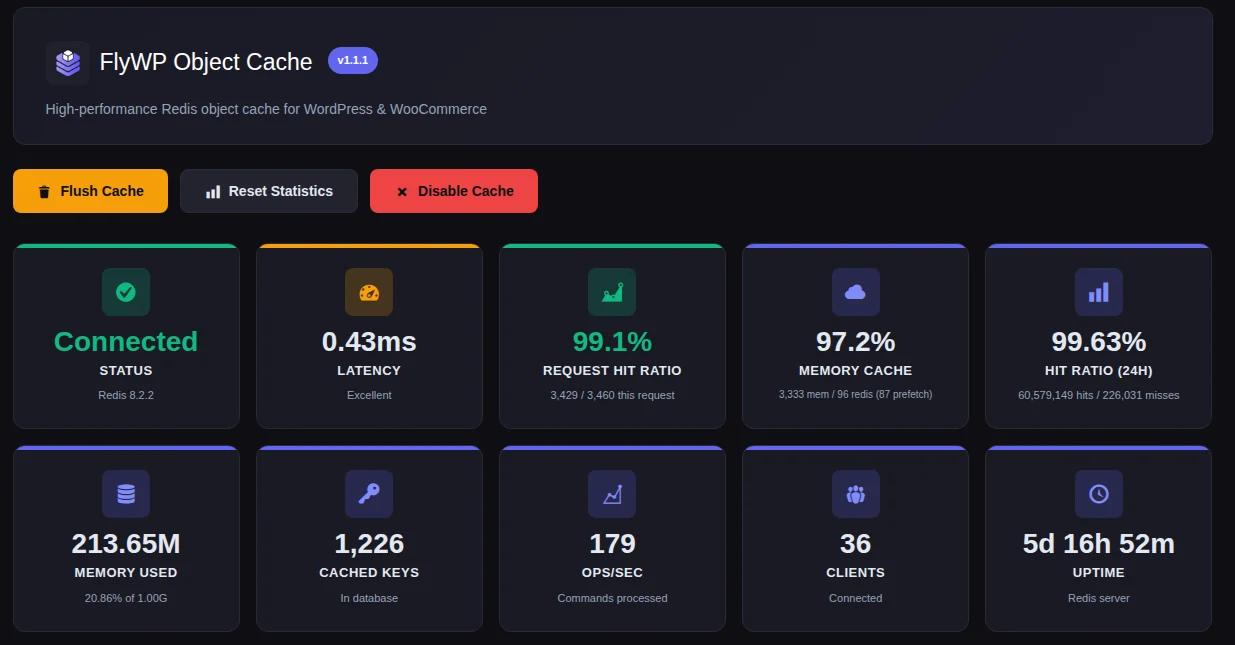
● Status, hit ratio and latency in one place
CONNECT / CACHE / MEASURE
$79
Early Bird price for 1 website. Paid once.
4 plans
From 1 website up to unlimited.
Lifetime
Updates for the life of the license.
30 days
Money-back guarantee on every plan.
FIVE TABS. TWENTY-ONE SETTINGS.
Tune it once.
Then leave it alone.
Connection, Cache, Performance, Advanced and Security each hold their own set of controls — and every recommended value is already selected, so a fresh install starts from a sensible configuration.
01 / CONNECTION
TCP, TLS or a Unix socket.
Point the plugin at Redis across the network or, when it runs on the same machine, straight at a Unix socket. Host, port, database, username, password and key prefix are all settings — or constants in wp-config.php.
Unix socket · TLS · Key prefix
02 / CACHE
Smaller payloads. Fewer bytes.
LZF, LZ4 and ZSTD compression shrink what goes over the wire, and igbinary stores it more compactly than PHP’s own serializer. Query TTL, connection timeout and read timeout stay in your hands.
LZ4 · ZSTD · igbinary
03 / PERFORMANCE
Fewer round trips per request.
Prefetching loads frequently used keys in one go instead of one round trip at a time, and Split Alloptions stores a large alloptions blob as separate keys, so one oversized value no longer rides along with every request.
Prefetching · Split alloptions
04 / ADVANCED
The controls you set once.
Max TTL, connection retries, non-blocking flushes with UNLINK, stampede protection, soft pruning — and a debug mode with its own log level for the days you need it.
UNLINK · Stampede protection · Soft pruning
05 / SECURITY
Your Redis password, encrypted.
Connections can run over TLS, and the Redis password can be stored as AES-256-GCM ciphertext instead of plain text — with the key held in wp-config.php as FLYWPOC_ENCRYPTION_KEY.
TLS · Encrypted password · wp-config key
06 / VISIBILITY
Numbers, not guesswork.
Hit ratio, latency, memory, operations per second and evicted keys are tracked over time — and the plugin reports into WordPress Site Health, Query Monitor and Debug Bar.
Analytics · Site Health · Query Monitor
WORKS WITH THE STACK YOU ALREADY RUN
INSIDE THE PLUGIN
Real screens.
Real controls.
Every screen below is taken from the FlyWP Object Cache interface — the same dashboard and settings you get after installing it.
Connection
FROM THE PLUGIN
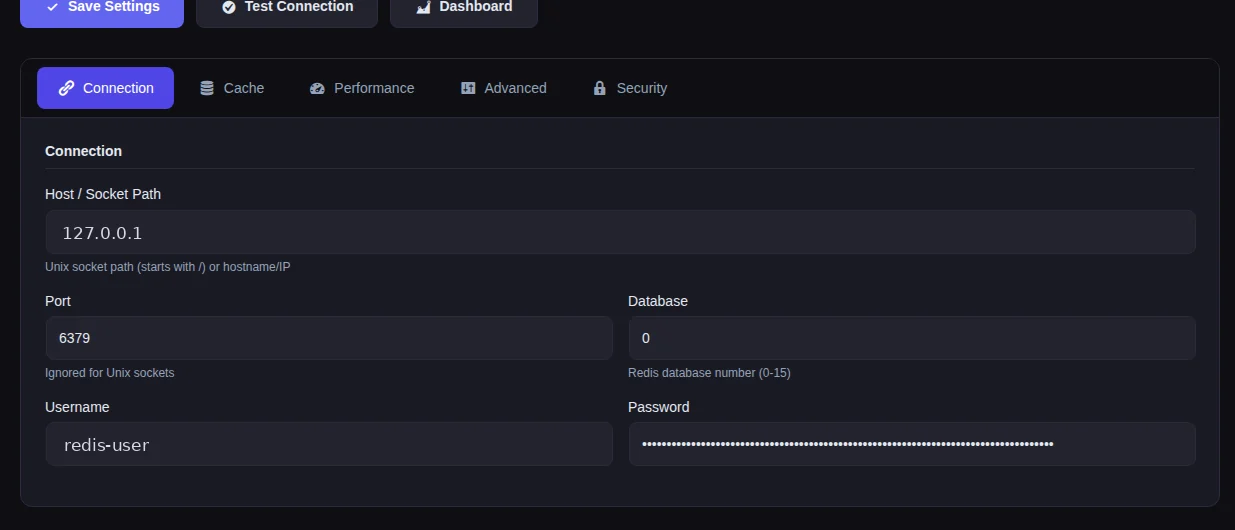
The Connection tab in FlyWP Object Cache. Host, port, database and credentials — or set them in wp-config.php instead.
ONE TAB TO GET CONNECTED.
Redis, wherever
it happens to live.
A hostname and port for a Redis on another machine, or a socket path when it runs right beside WordPress. TLS is supported, and the database number keeps several sites apart on a single Redis instance.
Prefer your configuration in code? Define WP_REDIS_CONFIG in wp-config.php and the plugin reads it from there. Test Connection tells you straight away whether it worked.
Unix socket · TLS · wp-config.php
THE DIALS BEHIND THE DEFAULTS.
Sensible by default.
Yours to change.
Every option on the Advanced tab arrives with a recommendation already selected — igbinary, three connection retries, async flush, stampede protection, soft pruning and analytics are all on.
Change what your setup actually needs. Cap key lifetime with Max TTL, switch on Debug Mode with its own log level while you are chasing something, and leave the rest where it is.
Find your FlyWP Object Cache planAdvanced
FROM THE PLUGIN
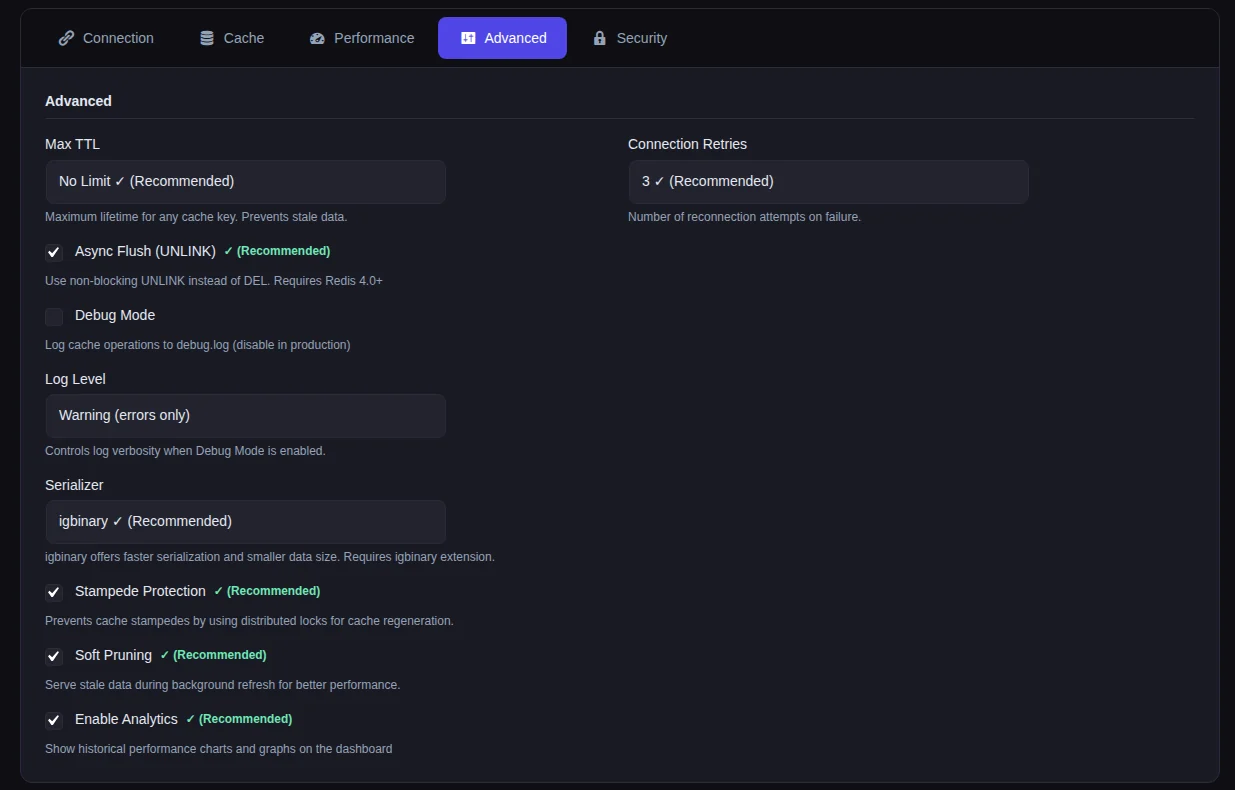
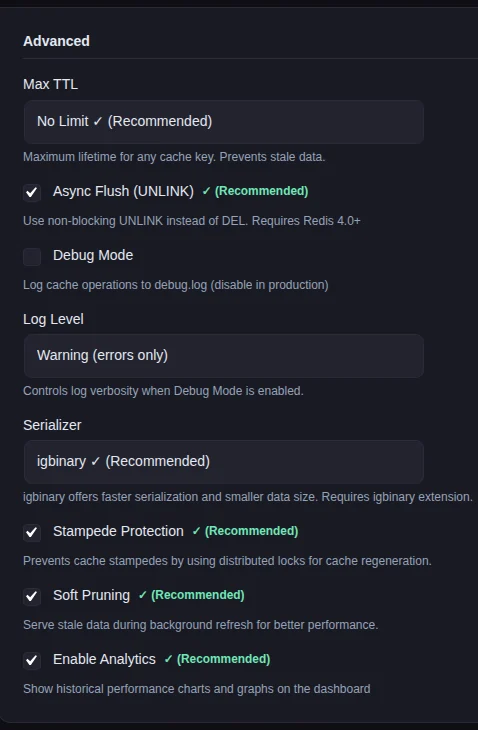
The Advanced tab in FlyWP Object Cache. Recommended values are marked, so you can see at a glance where you deviate.
Performance Analytics
FROM THE PLUGIN
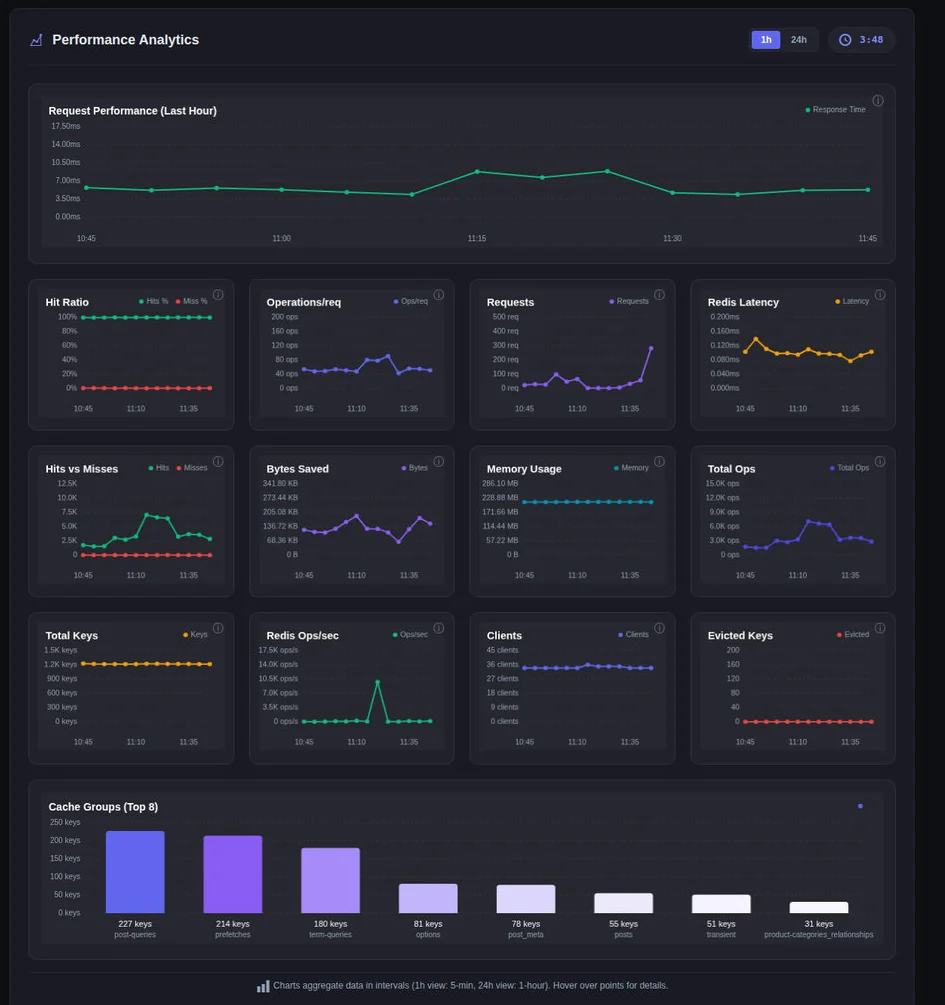
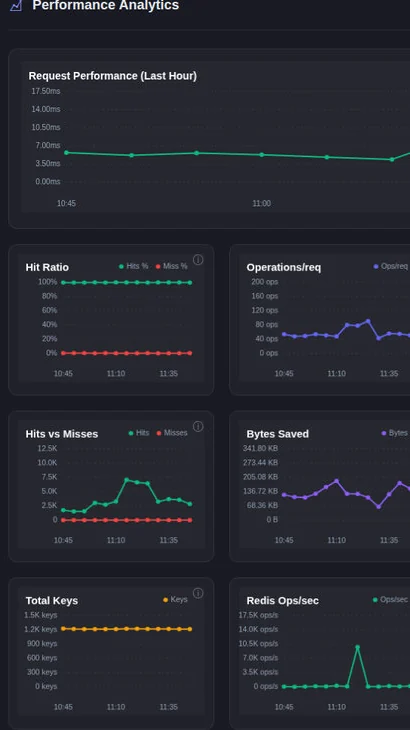
The analytics section of the FlyWP Object Cache dashboard. Charts aggregate in 5-minute or 1-hour intervals.
WHAT THE CACHE IS ACTUALLY DOING.
Measured,
not assumed.
Hit ratio, request latency, operations per request, bytes saved, memory usage, total keys and evicted keys — each one plotted over the last hour or the last 24 hours.
A Cache Groups chart shows which groups hold the most keys, so you can see where the cache is really being spent. Analytics is a setting: switch it off and the charts go with it.
Hit ratio · Latency · Cache groups
BEFORE YOU GO LOOKING.
It tells you what
your server has.
PHP, WordPress and PhpRedis versions, whether LZ4 and ZSTD are available, the Redis memory policy, fragmentation and eviction counts — read from the running server, not from a wishlist.
Drop-in status says in plain words whether wp-content/object-cache.php is in place and working. WordPress Site Health carries the same checks.
Drop-in status · Versions · Memory policy
Redis details & system info
FROM THE PLUGIN
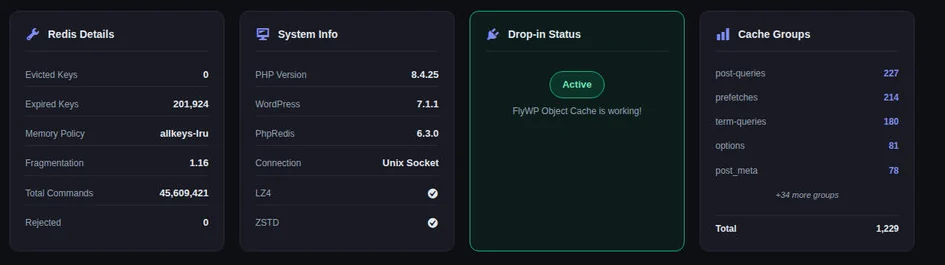
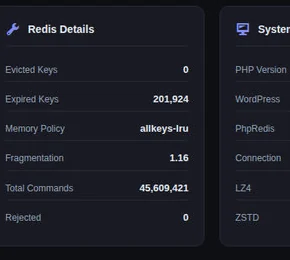
The diagnostics row on the FlyWP Object Cache dashboard. Drop-in status is checked on every visit.
FROM ZERO TO CACHED.
Four steps.
One drop-in.
Activating the plugin only writes a default configuration. It does not touch wp-config.php and does not install the drop-in — nothing is cached until you enable it.
01
Check the environment
PHP 8.0+, WordPress 6.0+, the PhpRedis extension and a reachable Redis 5.0+. Without PhpRedis the plugin deactivates itself on activation.
02
Install & activate
Upload the ZIP from your account, activate the plugin and enter your license key under FlyWP Object Cache → License.
03
Connect & test
Enter host, port and credentials on the Connection tab — or define WP_REDIS_CONFIG in wp-config.php — then run Test Connection.
04
Enable the cache
Enable Cache installs the object-cache.php drop-in. From then on the dashboard and Site Health report what the cache is doing.
BEFORE YOU BUY
What it needs.
What it does not.
The details that decide whether FlyWP Object Cache fits your setup — straight from the documentation.
01 / REQUIREMENTS
PHP 8.0+, WordPress 6.0+, Redis 5.0+.
Redis 6.0 or later is recommended. The PHP redis extension (PhpRedis) is required — the plugin checks for it on activation and will not run without it.
02 / YOUR REDIS
Bring your own Redis server.
The plugin connects to a Redis you run or your host provides — over TCP, TLS or a Unix socket. It does not install, host or manage Redis for you.
03 / ONE OBJECT CACHE
One drop-in per site.
WordPress loads a single wp-content/object-cache.php. FlyWP Object Cache never overwrites a drop-in another plugin wrote, and a conflicting object cache plugin blocks the install until you deactivate it.
04 / EXTENSIONS
igbinary, LZ4 and ZSTD — if your server has them.
igbinary is recommended but optional. LZ4 and ZSTD show as (n/a) when your PhpRedis build lacks them; LZF and no compression always work.
05 / TLS
Certificate checks are your call.
tls://, rediss:// or ssl:// switch the connection to TLS. Certificate verification is off by default — for production, pass your own tls_options in WP_REDIS_CONFIG (PhpRedis 5.3.0+).
06 / LICENSE
The license covers updates. Only updates.
Caching keeps running when a license is missing or inactive — the drop-in contains no licensing code, and a failed license check never revokes an active license.
THE EARLY BIRD OFFER
Pay once.
Keep it for life.
Pick the number of websites you need. Every Early Bird price below is already 50% off, paid once — with updates for the life of the license.
EARLY BIRD · 50% OFF
One-time payment. No subscription.
ONE-TIME LICENSE
Business
Room for a growing business.
$149
$298
one time · save $149
5 websites
Buy BusinessRECOMMENDED
BUILT FOR CLIENT WORK
Agency
Redis caching across your client portfolio.
$249
$498
one time · save $249
25 websites
Buy AgencyONE-TIME LICENSE
Enterprise
One cache layer. Your entire operation.
$399
$798
one time · save $399
Unlimited websites
Buy EnterpriseINCLUDED IN EVERY PLAN
Redis object caching
Compression & igbinary
Performance analytics
WP-CLI & Site Health
Every plan ships the same features and the same updates. The only difference is how many websites you can activate.
NEED PAGE CACHING TOO?
Get both plugins as a bundle.
FlyWP Object Cache and FlyWP Cache in one checkout — two license keys for the same number of websites. From $119 once instead of $158 for both on their own.
30-day money-back guarantee
Install FlyWP Object Cache on your own site and judge it there, against your own Redis. If it is not the right fit, request a full refund within 30 days of purchase.
One-time payment. No recurring subscription.
BEFORE YOU TAKE OFF.
Good questions.
Clear answers.
The essentials, without the small-print maze.
Is this a subscription?
No. Every price shown is a one-time payment for a lifetime license. There is no recurring FlyWP Object Cache subscription, no renewal date and nothing to cancel. Updates arrive through the normal WordPress update screen.
Are the prices already discounted?
Yes. Personal is $79 instead of $158, Business $149 instead of $298, Agency $249 instead of $498, and Enterprise $399 instead of $798.
Which plan should I choose?
Choose by the number of websites: Personal for 1, Business for up to 5, Agency for up to 25 and Enterprise for an unlimited number. Every plan ships the same features and the same updates.
What do I need on the server?
PHP 8.0 or higher, WordPress 6.0 or higher, a reachable Redis server on 5.0 or higher (6.0 and up recommended), and the PhpRedis extension. igbinary is recommended; LZ4 and ZSTD compression are used when your server provides them.
Can I run it next to another object cache plugin?
No — only one plugin can own wp-content/object-cache.php. FlyWP Object Cache refuses to overwrite another plugin’s drop-in and will not install while a conflicting object cache plugin is active. A page cache such as FlyWP Cache is a different layer and works alongside it.
Can I keep the configuration in wp-config.php?
Yes. Define WP_REDIS_CONFIG — or FLYWPOC_CONFIG if another Redis plugin already uses that name — and the plugin reads it from there. A defined constant always wins over the settings screen. The legacy WP_REDIS_* constants are read as well.
Does it work with WooCommerce?
Yes. WooCommerce sessions and fragments get their own handling. As with any caching change, walk through your product, cart and checkout flows once after enabling the drop-in.
Does caching depend on the license?
No. The license gates plugin updates and nothing else. The object-cache.php drop-in contains no licensing code, and a failed license check — a timeout or an outage — never revokes an active license.
Can I move my license to another website?
Yes. Deactivate the website under FlyWP Object Cache → License, then activate the key on the new website. Your plan decides how many websites can be active at the same time.
What if it is not the right fit?
Request a full refund within 30 days of purchase. Install it on your own site and judge it there, with your own Redis, theme and plugins.
Not sure it fits your setup?
Tell us about your hosting, your Redis and your plugins before you buy. We will get back to you as soon as we can.
LESS WAITING. MORE HEADROOM.
Your next upgrade
starts here.
Move the WordPress object cache off the database and onto Redis — then watch what it does on your own traffic.
From $79 once · Lifetime license · 30-day money-back guarantee